How to Watch Multiview Twitch and Kick Streams Together
WhosLive editorial team · · 4 min read
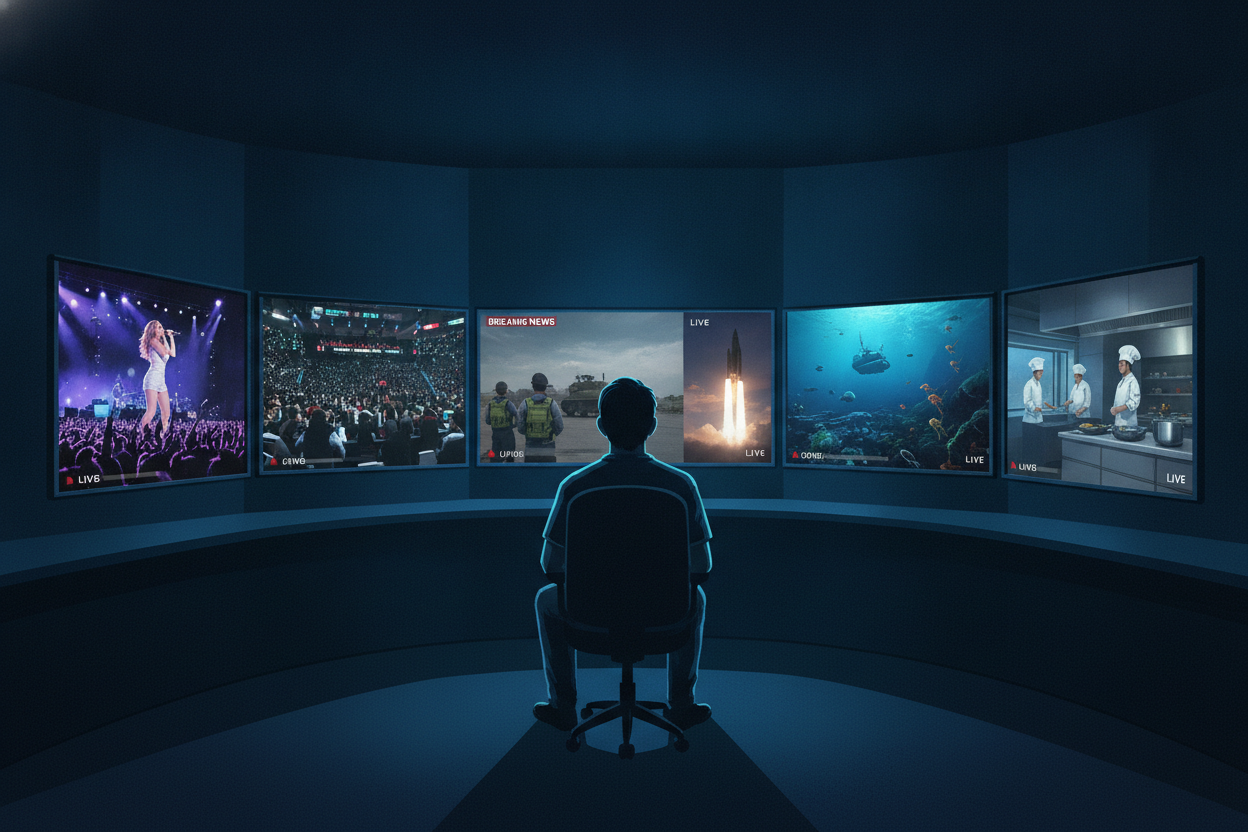
A multiview Twitch and Kick setup lets you watch multiple live broadcasts from both platforms on a single screen simultaneously. To achieve this, load the channel links into a cross-platform stream aggregator. WhosLive features a Multiview tool designed for tournaments, displaying several streams side by side with chat and a mute-all option.
Choosing a Cross-Platform Stream Aggregator
A cross-platform stream aggregator is a web application that pulls live video feeds from different streaming services into a single browser window. Viewers use these tools to bypass platform restrictions and build customized watch dashboards. When selecting an aggregator, verify that it supports the specific mix of platforms you need, such as Twitch and Kick.
Streams Charts provides a multistream viewer that supports up to 9 live streams across Twitch, Kick, and YouTube in a single split-screen layout. Another option, Multiwatch, is a free web tool allowing users to watch multiple streams simultaneously from Twitch, YouTube, Trovo, and Kick. These external tools rely on channel links formatted in a specific URL string to generate the split-screen view.
For users watching tournaments and events, WhosLive offers a built-in solution. You can access WhosLive Multiview to watch several streams at once with chat, mute-all, and fullscreen capabilities. This feature places live broadcasts side by side in one interface.
WhosLive Discovery shows who is live right now across Twitch, YouTube, Kick, Rumble, Chzzk, Bilibili, Douyu, Huya, Odysee, Picarto, Pump.fun, and SOOP. The home page features featured streams, platform filters, top categories and a personalised For You row.
You can also track the biggest live streams right now filterable by platform via the Top Lives page.
Managing Audio and Layouts for Multiple Streams
Layout management is the process of arranging multiple video players on your screen while controlling which stream outputs sound. Juggling two or more live broadcasts requires careful audio routing to prevent overlapping noise and hardware strain. To manage audio and layouts in a multiview setup, follow these steps:
- Open your chosen stream aggregator in a compatible web browser.
- Enter the distinct URLs for the Twitch and Kick channels you want to watch.
- Select a split-screen or focus mode layout that fits your monitor size.
- Mute all secondary streams by clicking the speaker icon on their respective video players.
- Enable audio exclusively for the primary broadcast you wish to hear.
- Toggle the fullscreen option on the aggregator to maximize the video real estate.
WhosLive Multiview includes a mute-all setting. The tool also provides a fullscreen mode. This approach allows you to browse live categories and instantly adjust the display for large events without losing visibility.
By organizing the players effectively, you maintain a clean viewing environment for extended watch sessions. If you prefer vertical swiping over a grid, WhosLive offers Scroll, a vertical feed of live streams viewed one swipe at a time. To keep track of who to add to your layout, you can follow creators across platforms, import your follows from Twitch, YouTube, and Kick, and get a browser alert when they go live.
Integrating Chat Across Twitch and Kick
Chat integration is the display of real-time viewer messages from different streaming platforms within a single interface. When using a multiview Twitch and Kick setup, keeping up with multiple communities can be difficult if the chat boxes are hidden or fragmented across browser windows. Aggregators often embed the native chat window next to the corresponding video player, allowing viewers to monitor interactions seamlessly.
This allows you to read messages and type replies without opening separate tabs. WhosLive Discovery pulls the stream and merged chat directly into the watch page so streams play inside WhosLive. When using WhosLive Multiview, the chat is displayed alongside the side-by-side video feeds.
You can chat as your linked platform account. If you follow creators across platforms, participating in their individual chats is essential for community building.
Viewers frequently switch their active chat window to interact with different streamers during a collaborative gaming event. Proper integration ensures that moderation badges, user messages, and emotes load correctly from the source platform. WhosLive features chat translation, and translated titles and names for Chinese, Japanese and Korean streams.
In addition to standard text chat, WhosLive includes voice rooms where you can talk with other viewers while you watch. If a notable moment happens during your multiview session, you can create Twitch clips directly from the watch page.
FAQ
How do I watch Twitch and YouTube streams at the same time?
You can watch Twitch and YouTube streams simultaneously by using a cross-platform stream aggregator. Paste the specific channel links into the tool's input bar to generate a split-screen layout. This eliminates the need to manage multiple separate browser tabs while viewing.
How many streams can I watch simultaneously?
The number of streams you can watch depends on your hardware capabilities, internet bandwidth, and the specific tool you use. Some platforms enforce limits, while others adapt the layout dynamically.
How do I handle audio from multiple sources?
Handling audio requires muting secondary streams to prevent overlapping sound. You can use native mute-all features or manually adjust the volume slider on each individual video player in your grid.
Can I interact with the streams?
Yes, you can interact with the streams if the aggregator supports chat integration. The tools embed the native chat alongside the video players. You must log in with your specific platform account to send messages, use emotes, and participate in channel polls.
To watch several streams at once with chat, mute-all, and fullscreen capabilities, launch WhosLive Multiview.
Frequently asked questions
Ready to watch?
Every live stream across every platform, in one place.