How to Multistream to Twitch and YouTube at the Same Time
WhosLive editorial team · · 6 min read
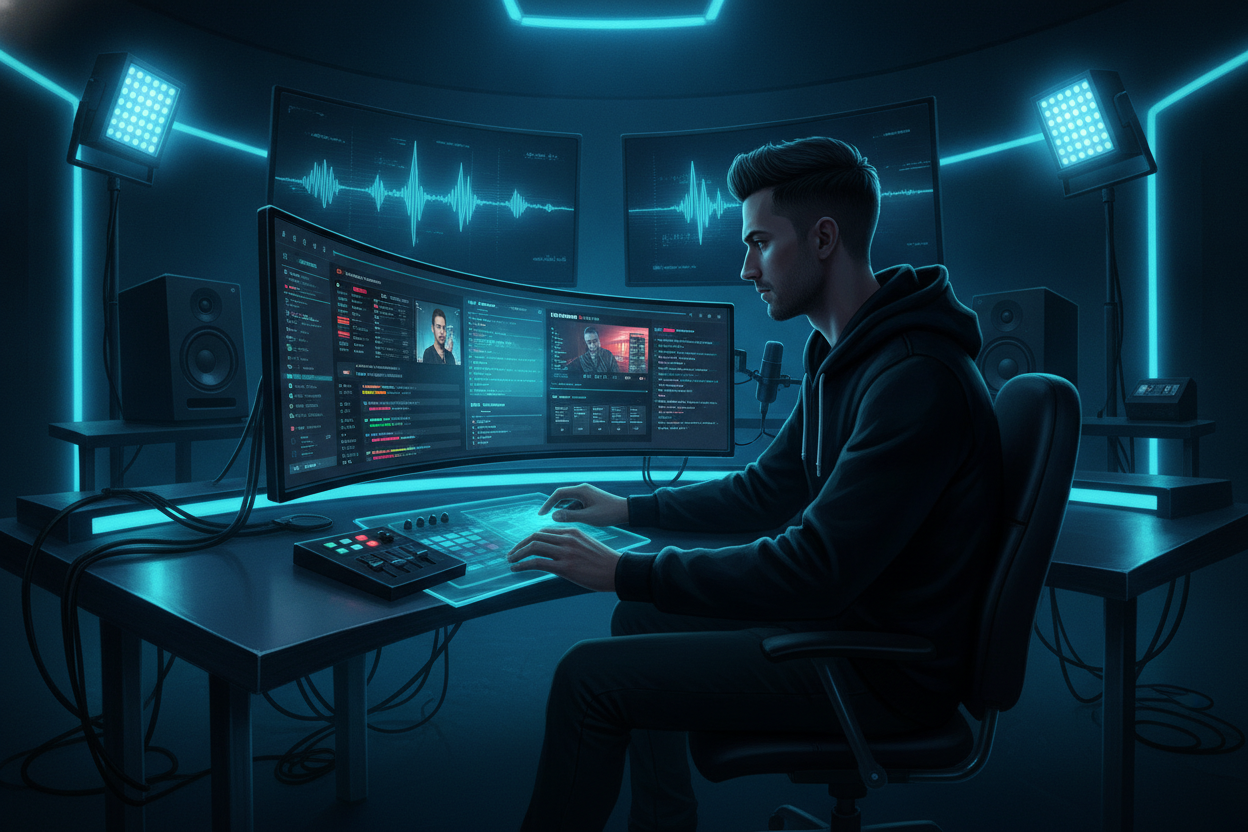
Multistreaming is the process of broadcasting a single live video feed to multiple platforms simultaneously. To multistream to Twitch and YouTube at the same time: 1. Open WhosLive Studio. 2. Connect your Twitch and YouTube accounts. 3. Import your existing OBS setup. 4. Go live to both destinations.
Understanding Twitch and YouTube Simulcasting Rules
Simulcasting refers to the practice of sending your live video feed to more than one destination network at the same time. Historically, platform exclusivity agreements heavily restricted creators from broadcasting live to multiple major platforms simultaneously. These rules forced creators to choose a single primary platform for their live interactions, limiting their ability to reach fragmented audiences across the web.
Recent updates to platform policies have fundamentally changed how creators distribute their live content. Twitch's TOS allows streaming to multiple platforms, lifting the previous exclusivity agreements that prevented partners and affiliates from simulcasting. This means creators can now broadcast their gameplay, just chatting sessions, or creative workflows to Twitch and YouTube concurrently without violating their monetization agreements. The removal of these barriers has made multistreaming a standard practice for broadcasters looking to maximize their live reach.
While Twitch has updated its guidelines to permit simulcasting, it is critical to understand the specific nuances of these platform rules. Broadcasters must ensure their Twitch community receives an experience that is at least equal to the broadcast sent to YouTube. Furthermore, while Twitch permits the technical act of simulcasting, creators must still adhere to all standard community guidelines and terms of service regarding content safety, copyrighted material, and harassment during the broadcast.
YouTube has traditionally maintained an open stance regarding simulcasting for its creators. The platform does not typically impose live exclusivity clauses on standard channels, allowing users to freely send their RTMP streams to other destinations. This lenient approach makes YouTube an ideal secondary or primary destination in a multistreaming setup alongside Twitch. Creators leveraging both platforms can utilize YouTube's strong video-on-demand algorithms while simultaneously engaging with Twitch's highly interactive live community culture.
When preparing to stream to both platforms, creators must consider how they manage community engagement across different ecosystems. Twitch emphasizes real-time chat interactions, specialized emotes, and instant alerts, whereas YouTube focuses heavily on stream archiving and search discoverability. Balancing these distinct platform cultures while remaining compliant with simultaneous broadcasting rules requires a thoughtful approach to live moderation and chat management.
Configuring OBS Studio for Multiple Output Destinations
Multistreaming is currently still not supported by OBS Studio. Run two machines or a hardware encoder so each sends a native stream directly to one platform, as you are essentially multiplying your required network output by the number of destinations.
After installing the plugin, users can access the multiple output dock to add specific ingest server URLs and stream keys for both Twitch and YouTube. This method forces your local computer's hardware encoder to compress and transmit multiple separate video feeds simultaneously.
Local multistreaming heavily impacts your system resources and network stability. Additionally, your graphics processing unit (GPU) must work harder to encode multiple video streams concurrently. Creators must monitor their dropped frames and hardware utilization carefully when utilizing local multistream plugins to avoid degrading the viewer experience.
When configuring your video settings in OBS for a dual-platform broadcast, consistency is key for stability. Navigate to the video settings tab and set both your Base Canvas and Output Scaled resolution to match your desired broadcast quality, typically 1920x1080. Ensure your framerate is locked to 60 fps for smooth gameplay playback, or 30 fps for standard camera feeds. It is highly recommended to use hardware encoders like NVENC for NVIDIA GPUs to offload the heavy processing requirements from your system's CPU.
Bitrate configuration dictates the visual fidelity and network demands of your broadcast. Properly aligning these encoding settings ensures that your local software can effectively communicate with multiple platform servers without triggering buffer states or stream disconnects.
Connecting Twitch and YouTube Accounts in WhosLive Studio
Transitioning from complex local software setups to a unified dashboard simplifies the multistreaming process. You can multistream from one studio directly to Twitch, YouTube, Kick, Rumble, X, LinkedIn, TikTok, Instagram, YouTube Shorts, and custom RTMP destinations. Connect accounts for Twitch, Kick, YouTube, X, Instagram, TikTok and Rumble.
You can connect accounts for Twitch, Kick, YouTube, X, Instagram, TikTok and Rumble.
You can import an existing setup from OBS directly into the studio, bringing over your carefully constructed scenes and sources. The studio has a 1080p60 output setting. You can also utilize the customizable panel layout and themes to organize your workspace exactly how you need it during a live broadcast.
You can configure a vertical output for vertical platforms alongside your horizontal stream, allowing you to simultaneously target traditional desktop viewers and mobile users. If you do not have a dedicated webcam, you can go live from your phone camera directly into the studio. Furthermore, the studio includes camera background removal and green-screen options without a physical green screen, keeping your visual presentation clean and professional.
The integrated AI agent co-host helps with stream titles and themes your stream, such as applying a specific Halloween look. This agent can turn you into a VTuber or avatar, add stickers and backgrounds, and can run as a voice co-host. The studio also features built-in recording capabilities, allowing you to save pristine local copies of your multistream for future editing and video-on-demand uploads.
Managing Audience Engagement With Merged Chat
Engaging with viewers across multiple platforms simultaneously is the most significant challenge of multistreaming. When broadcasting to Twitch and YouTube simultaneously, splitting your attention between two separate chat windows often leads to missed messages and a disjointed community experience. A unified interface is required to ensure that viewers on Twitch feel just as acknowledged as viewers watching on YouTube. WhosLive Studio solves this by providing a merged chat: every platform's chat in one feed with badges, tips, moderation (including bans) and a voice option, and one send box to reply across platforms.
Platform-specific badges appear next to viewer names, allowing you to instantly identify whether a message originated from Twitch or YouTube. This unified view includes integrated moderation tools, meaning a broadcaster or their assigned moderators can issue timeouts or bans across platforms from a single interface. The single send box allows the creator to type a reply that is distributed back to all active platform chats simultaneously.
The studio features a comprehensive engagement feed that tracks subs, follows, raids, Super Chats, and Rants in real time. It aggregates donations and tips from every platform, displaying a unified total, hourly rate, and progress toward a specific stream goal.
Interactive stream elements are crucial for retaining viewer attention and driving active participation. The studio interface allows you to launch and manage polls and raids on Twitch, as well as polls on YouTube, directly from your primary dashboard.
The live activity dashboard displays concurrent viewers across platforms, peak viewership metrics, chat rate, and total watch time. After you end your broadcast, the studio generates a detailed post-stream report summarizing your cross-platform performance.
FAQ
Can you stream on Twitch and YouTube at the same time as a partner?
Yes. Twitch updated its Terms of Service to allow simulcasting for all creators, including Affiliates and Partners. You can broadcast your live feed to Twitch and YouTube simultaneously, provided you do not degrade the Twitch stream's quality and follow all standard community guidelines across platforms.
When you do this with Twitch and YouTube, does it combine the chats from both into the one stream chat dock in OBS?
Native OBS Studio does not automatically merge chat feeds from different platforms into a single dock. To achieve this, creators use specialized dashboards. WhosLive Studio provides a merged chat that puts every platform's chat in one feed with platform badges and consolidated moderation tools.
Does my fps will be affected by streaming on multiple platforms or it only affects my internet?
If you use local plugins to encode multiple streams from OBS, it heavily impacts both your internet bandwidth and your GPU, which can lower your game's FPS.
How can you live stream on YouTube, Facebook, and Twitch at the same time?
You can stream to multiple destinations by connecting your platform accounts to a centralized streaming dashboard. WhosLive Studio allows you to connect accounts for Twitch, Kick, YouTube, X, Instagram, TikTok, and Rumble, letting you toggle multiple live destinations on or off from a single interface.
Related on WhosLive: WhosLive
Frequently asked questions
Ready to watch?
Every live stream across every platform, in one place.