What Is an AI Co-Host for Streamers? Features and Setup
WhosLive editorial team · · 4 min read
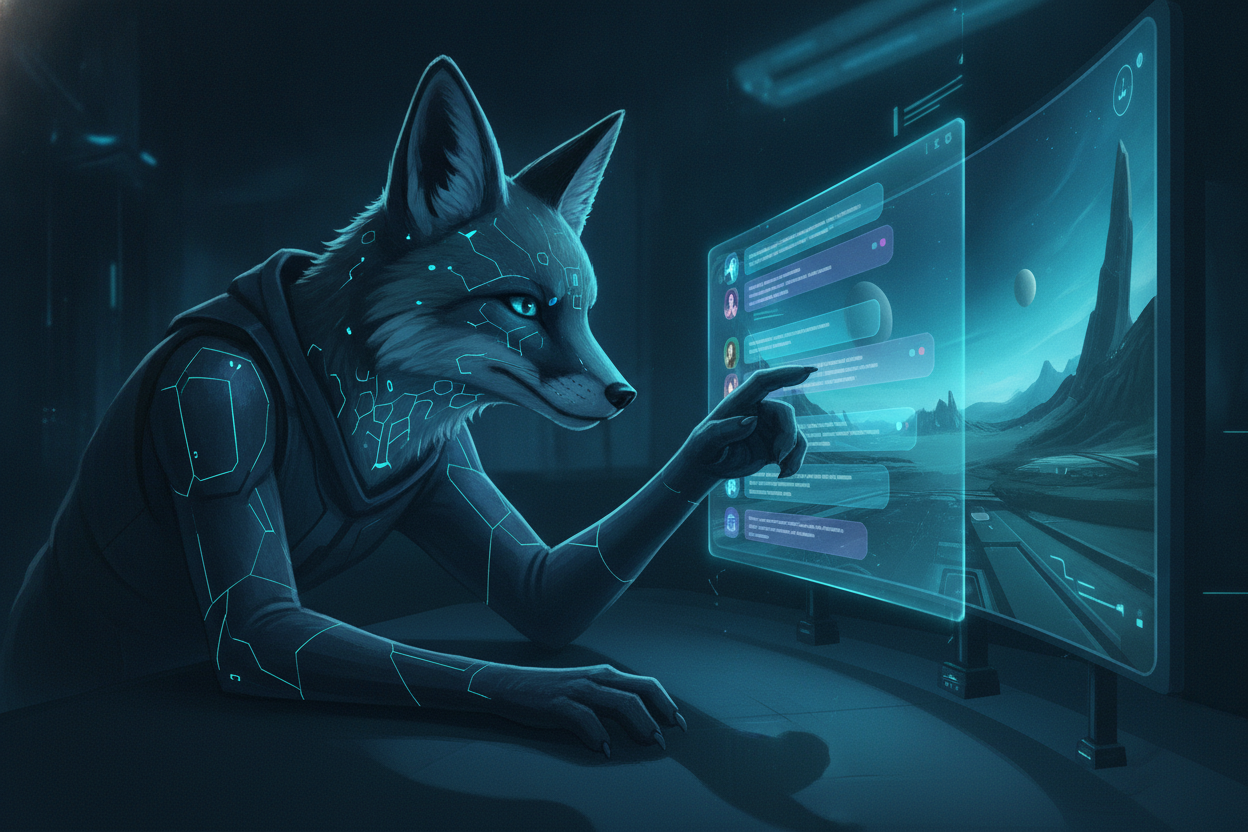
An AI co-host for streamers is an artificial intelligence assistant that interacts with live audiences, reacts to gameplay, and helps manage broadcasts. These tools use language and vision models to provide real-time commentary, answer chat questions, and fill silence. Creators use them to maintain energy and engagement during quiet moments.
How it works
Virtual streaming assistants rely on a combination of vision language models and audio processing to interpret what happens during a broadcast. These systems capture the user's screen in real time to understand the state of a game, read chat messages, and listen to the creator's microphone. By processing this data simultaneously, the AI generates contextual responses without requiring the streamer to manually type prompts. This allows the software to react to clutch plays, matchmaking queues, or funny failures exactly as a human co-host would.
Different applications process this data using varying amounts of local hardware resources. For example, Streamlabs Sidekick uses models from NVIDIA and Inworld to generate lifelike 3D avatars and real-time intelligence directly on the host machine.
The interaction loop is designed to feel like a natural conversation, converting the AI's generated text into speech. Creators speak directly to their virtual companion, and the AI responds using a selected voice profile through a dedicated audio channel. This audio is then captured by the broadcasting software, allowing viewers to hear the exchange. Advanced setups even allow the AI to execute backend commands, such as switching scenes or changing audio levels, based on the conversational context.
Key Features of Virtual Streaming Assistants
The primary function of an AI streaming companion is to eliminate dead air during loading screens, grinding sessions, and slow chat periods. Tools like Questie feature an automatic commentary mode where the AI observes the game state and generates relevant observations automatically. This ensures the stream maintains high energy levels without forcing the creator to narrate every minor movement. Because the vision AI understands the context of the gameplay, the resulting banter remains on-topic.
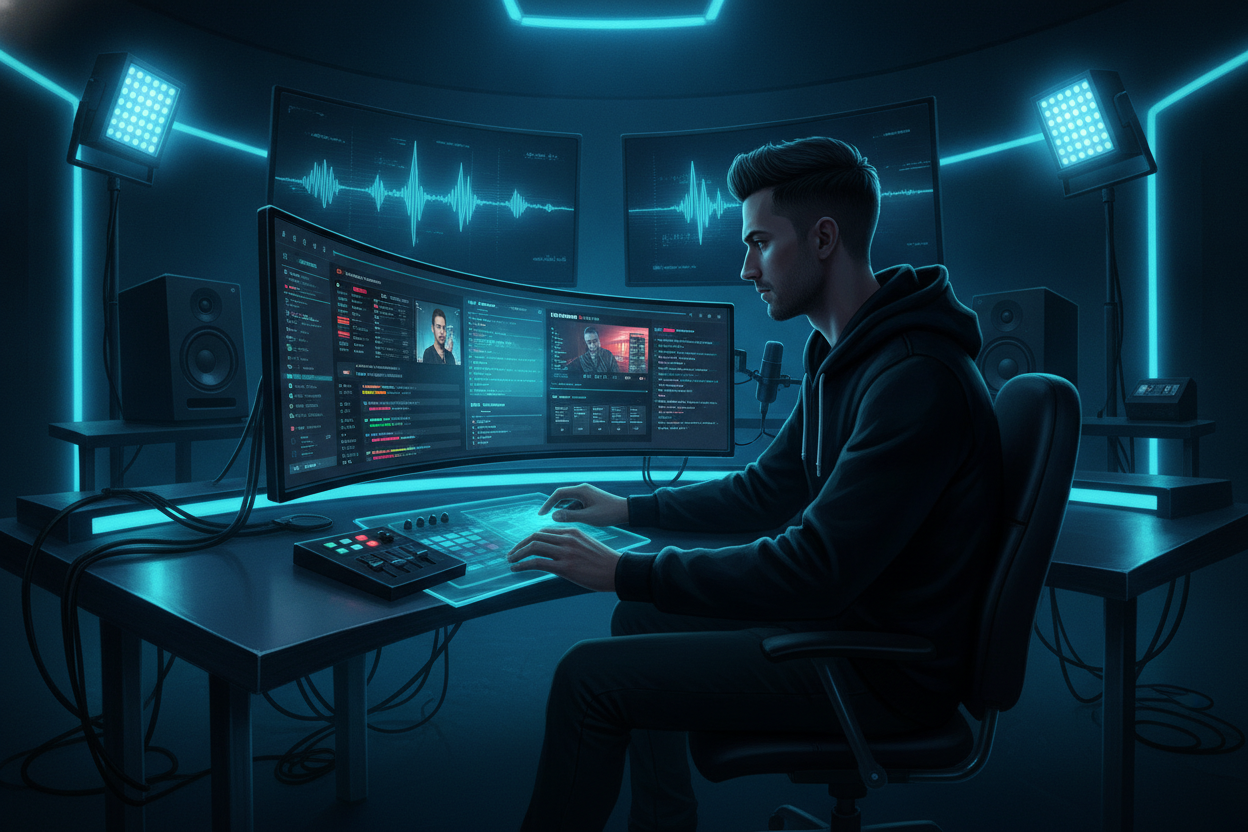
Beyond commentary, modern AI assistants act as live technical producers for the broadcast. Creators simply tell the assistant what they need, and the software executes the change without requiring the streamer to tab out of their game or look at a secondary monitor. This real-time troubleshooting lets creators focus entirely on their audience and gameplay.
| Feature | Questie | Streamlabs Sidekick |
|---|
Visual customization is another critical feature, allowing creators to align the AI's appearance and personality with their brand. Users can design specific character traits, backstories, speaking styles, and tones.
Integrating AI with Your Existing Setup
Adding a virtual companion to your broadcast requires routing audio and visuals through your preferred streaming software. The process is designed to work alongside existing overlays, alerts, and capture methods without demanding a complete workflow overhaul. Follow these steps to integrate a companion into your next live stream.
- Install the standalone AI application or plugin on your streaming PC.
- Select your preferred avatar type, keeping your system's hardware limitations in mind.
- Configure the AI's personality settings, voice profile, and content guardrails.
- Add the application's visual output as a Window Capture or Game Capture source in your broadcasting software.
- Route the AI's audio output to a dedicated virtual audio cable or secondary output device.
- Add this new audio device as an input source in your broadcasting software so your audience can hear it.
- Test the voice triggers by speaking to the assistant while your game is open.
These tools are built to adapt to the games you play and the software you already use. When switching between games, the vision AI automatically adjusts its context without requiring per-game configuration or special plugins. This seamless transition is especially useful for variety streamers who change categories multiple times during a single broadcast.
VTuber compatibility is also fully supported across many of these platforms. The virtual assistant can be themed to match the streamer's existing lore, acting as a sidekick or rival character within their specific universe. The technical stacks for the creator's avatar and the AI's generation complement each other rather than competing for the same software hooks.
WhosLive Studio AI Co-Host Features
WhosLive Studio allows you to multistream from one studio. WhosLive Studio features an AI agent co-host that helps with stream titles, stream themes and turning you into a VTuber. Creators can import an existing setup from OBS. The AI agent can theme your stream for specific events, like adding a Halloween look, applying stickers, and generating relevant backgrounds.
This feature works seamlessly with the platform's multistreaming capabilities, where creators can output to Twitch, YouTube, Kick, Rumble, X, LinkedIn, TikTok, Instagram, YouTube Shorts, and custom RTMP destinations simultaneously. The AI agent can run as a voice co-host.
It includes camera background removal and green-screen options without needing a physical green screen, and users can even go live directly from their phone camera. The interface centralizes audience interaction by merging chat from every platform into one feed, complete with badges, tips, and moderation tools. To explore the AI agent, customizable panel layouts, and 1080p60 vertical output capabilities, visit WhosLive Studio.
FAQ
Does the AI Really Watch My Gameplay in Real Time?
The AI analyzes the visual data to understand game states, clutch plays, and errors. This allows it to generate timely, contextual reactions without requiring the streamer to narrate what is happening on screen.
Will My Viewers Be Able to Hear the AI?
By adding this audio source to your broadcasting software, your audience hears the conversation naturally. It functions exactly like bringing a friend into a Discord call during your stream.
Can I Customize What the AI Says During Streams?
Creators have full control over the AI's personality, tone, and guardrails. You can configure the assistant's backstory, speaking style, and the boundaries of what topics it is allowed to discuss. This ensures the virtual companion always aligns with your brand and the content rating of your broadcast.
Frequently asked questions
Ready to watch?
Every live stream across every platform, in one place.